
Usage
Core Workflow
Start the client before or during an X-Plane flight, confirm the assistant is connected, then use push-to-talk for simulator commands or chat. The assistant handles two main types of speech:
- Commands: short instructions such as flaps, lights, parking brake, views, autopilot modes, and simulator control actions.
- Chat: natural-language questions about the flight, the aircraft, or simulator procedures.
Push-To-Talk
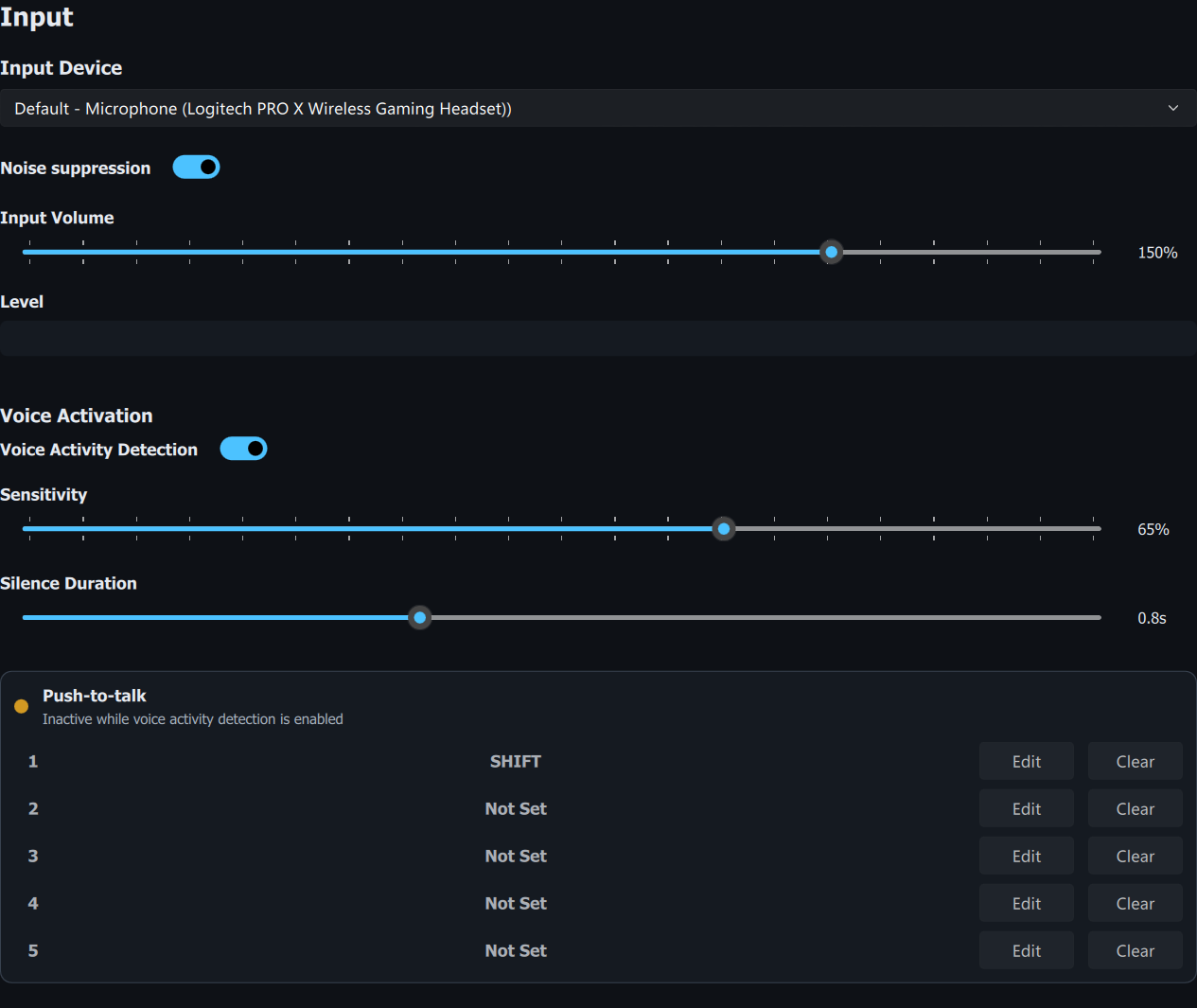
Press and hold your configured push-to-talk key or button, speak clearly, then release it. Configure bindings in the client keybind controls before flight so they do not conflict with your simulator controls.
Status Panel
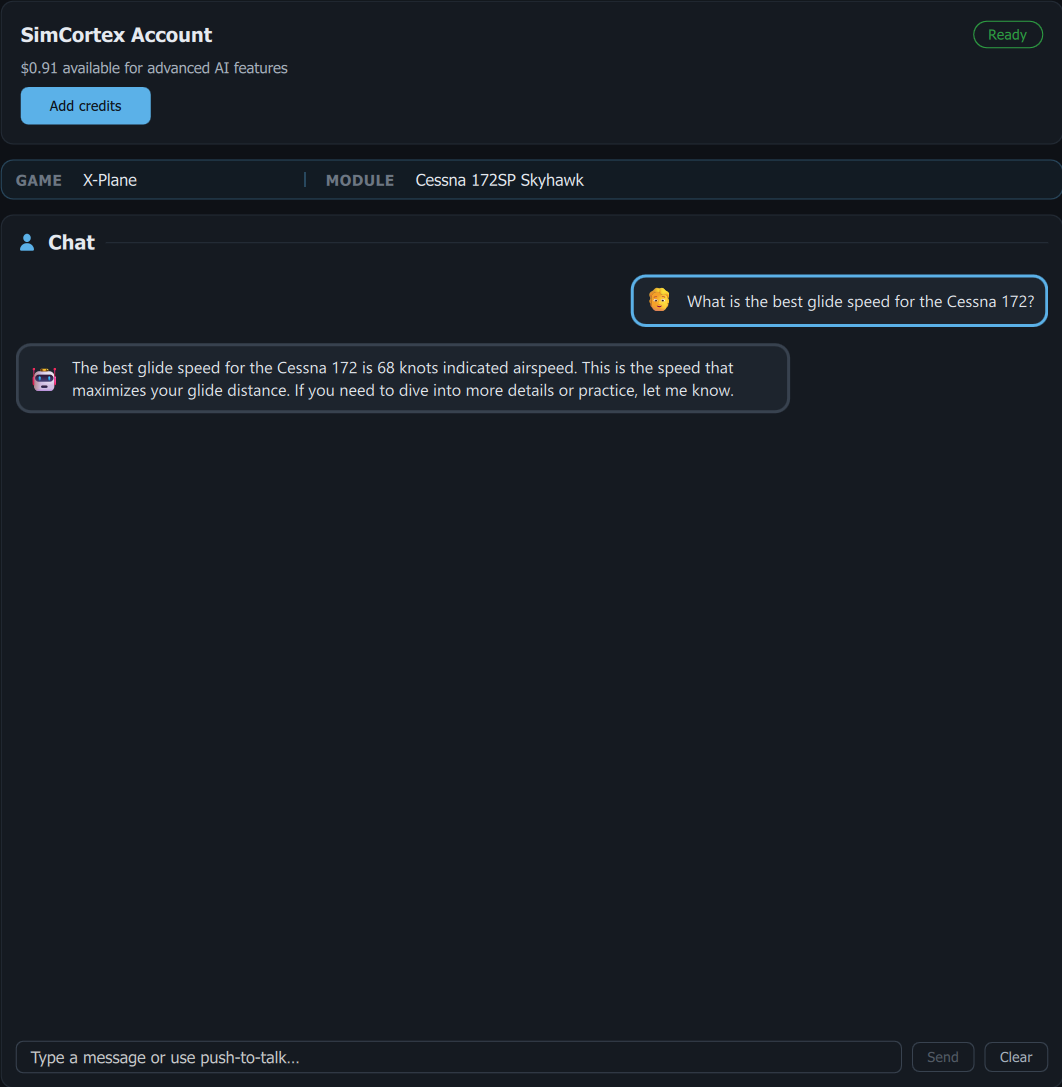
The Status panel is the main view for connection state, assistant status, and current runtime information.
Speech Panels
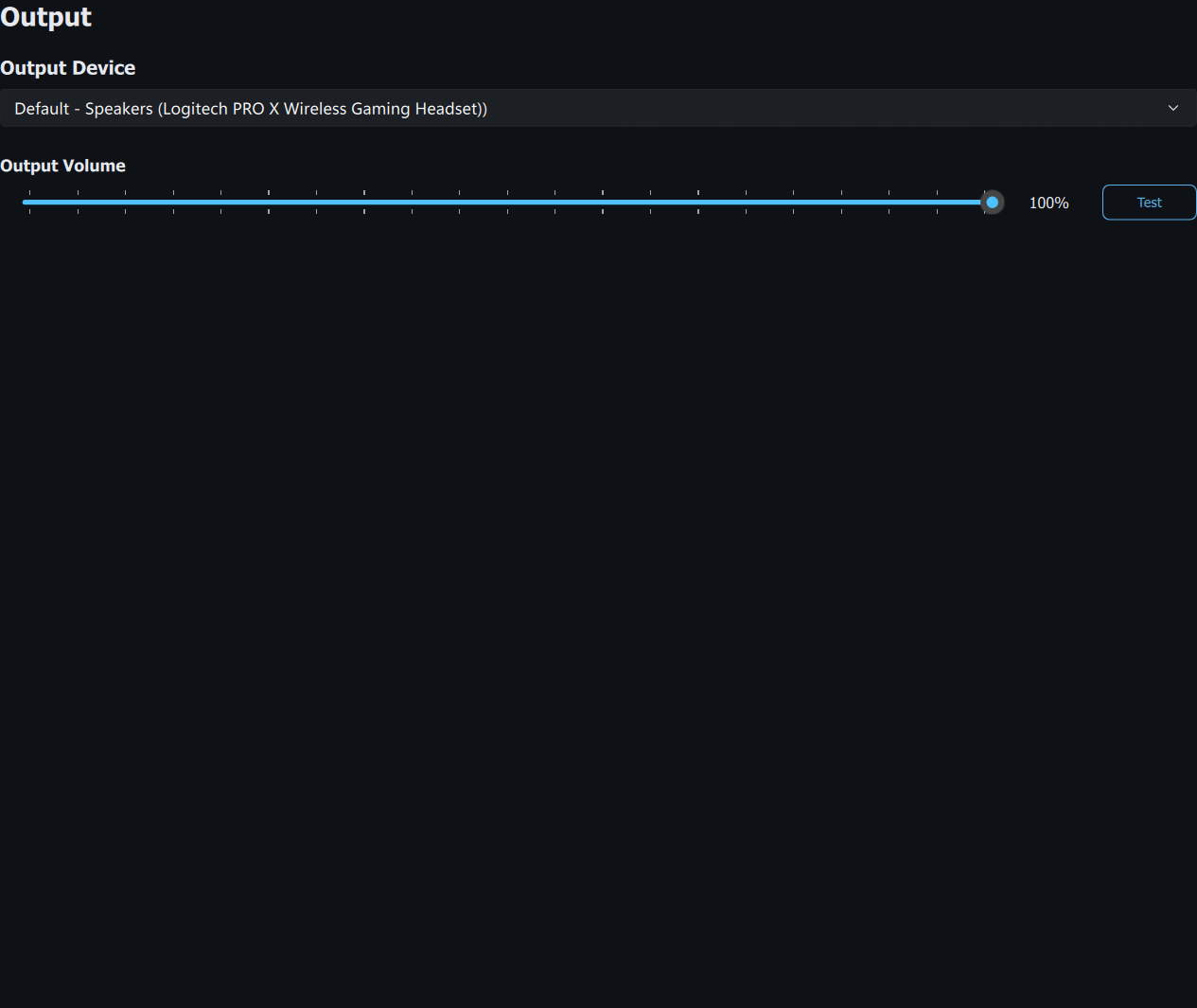
Use the speech input and output panels to confirm the client is hearing you and playing responses through the expected audio device.
X-Plane Commands
Command availability depends on the loaded aircraft. Universal commands work broadly, while piston, turbine, and retractable-gear commands require matching aircraft capabilities. Start from the X-Plane command reference or the stock aircraft support index.
Chat And AI Knowledge
Use the chat panel for questions that are not direct simulator commands. The assistant can answer from grounded X-Plane and aircraft knowledge when sources are available, and it can discuss the current flight context exposed by the client. See X-Plane Chat and AI Knowledge.
Help and Support
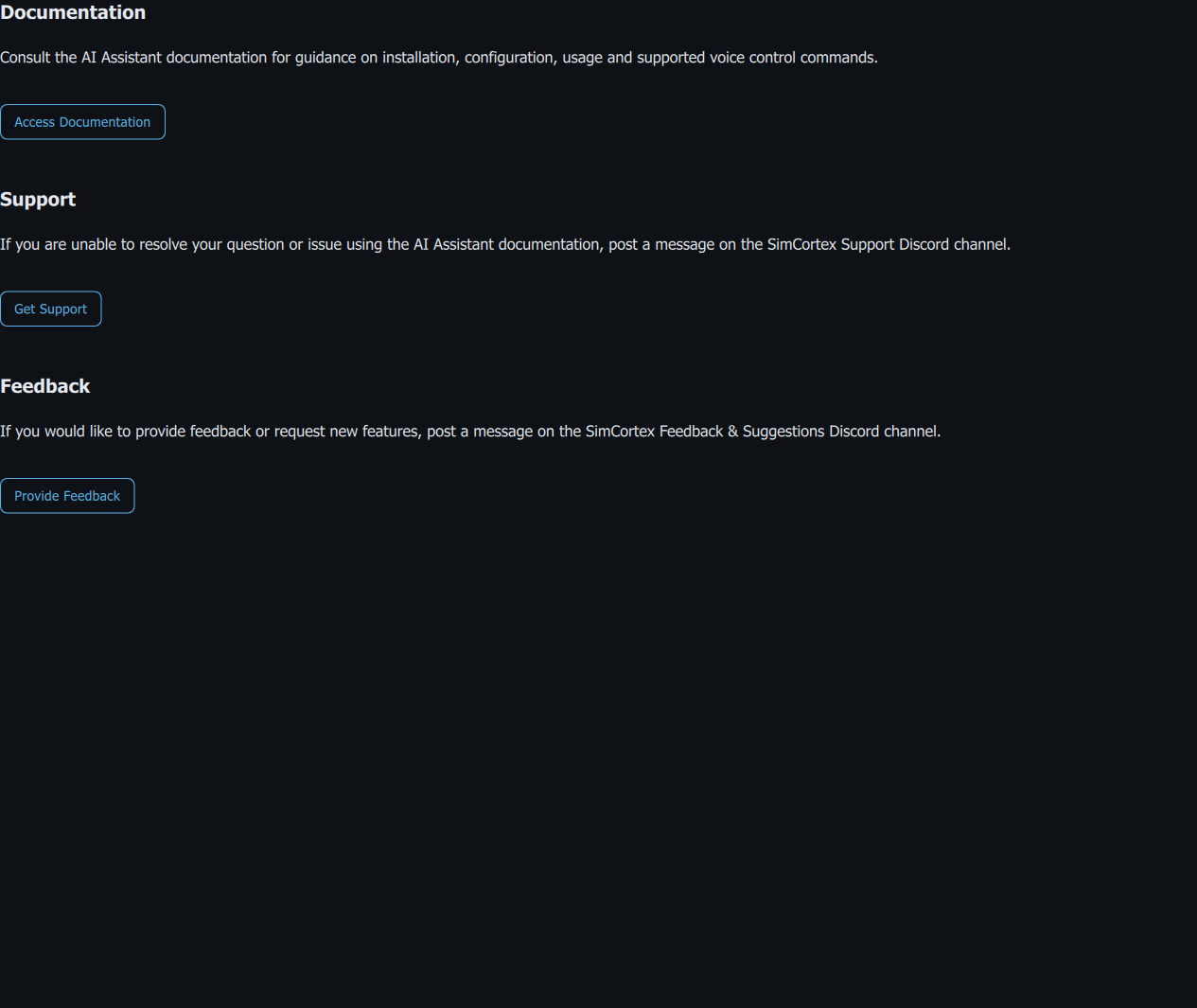
The Help panel provides quick links to documentation and community support.
About
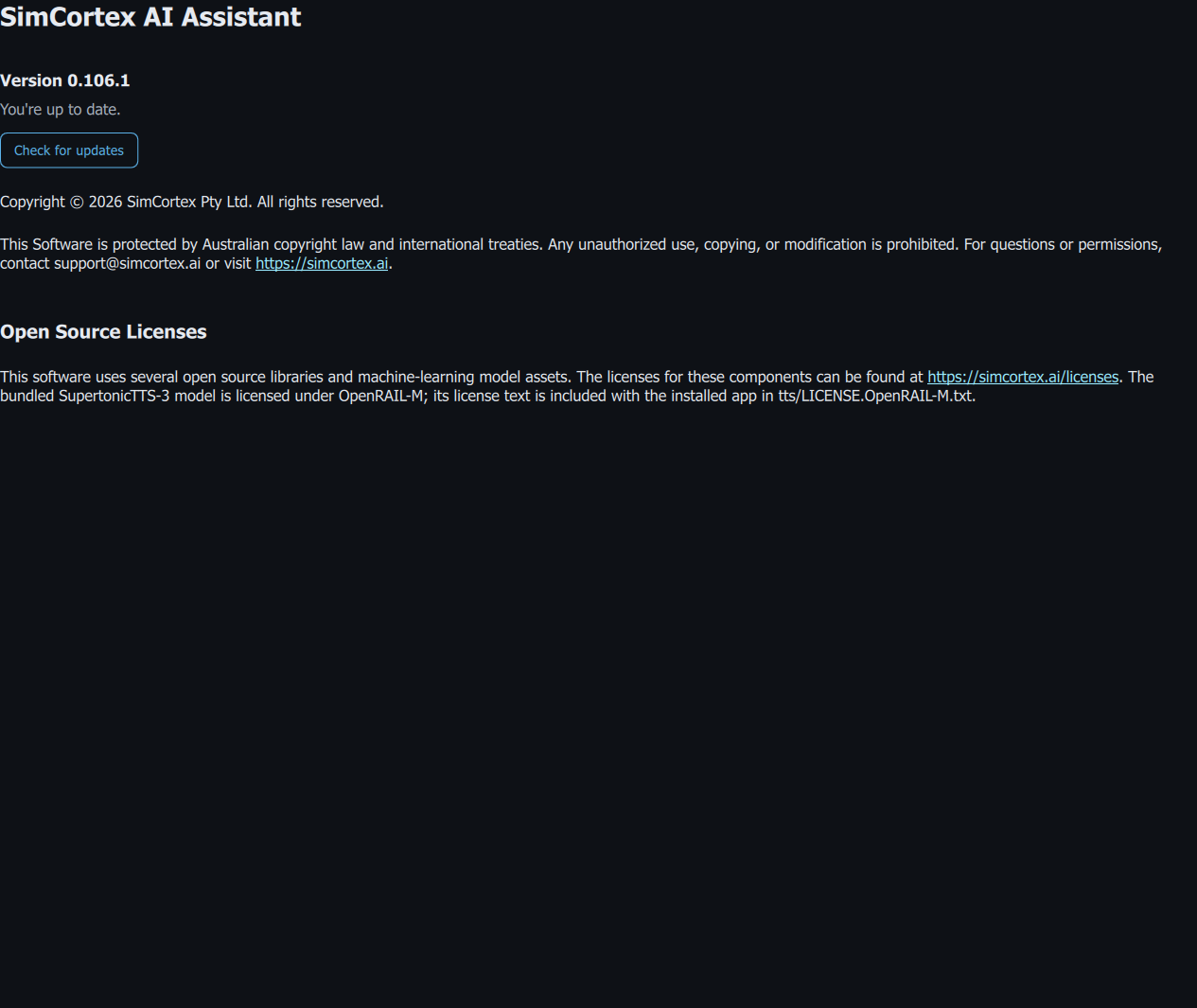
The About panel contains information about the application version and licensing.
Feedback & Suggestions
Please suggest any new features, commands or speech patterns that you would like have implemented via our Feedback & Suggestions Discord channel.